 FlexiLink
How to open links in a specific browser or profile on Windows
Windows lets you pick one default browser for every link. If you want work links in your work profile, some sites in Edge, and your bank in a private window, you need something in between. This guide shows how to set that up with FlexiLink in about five minutes.
1. Install FlexiLink
Download FlexiLink-Setup-26.10.0.exe and run it. It installs just for your Windows user, so you don’t need administrator rights. If your PC doesn’t have the Windows App SDK Runtime yet, the setup gets it from Microsoft automatically.
2. Make FlexiLink the default browser
Windows only sends links to the default browser, so FlexiLink has to be it. Don’t worry: your real browsers keep working, and FlexiLink passes each link it receives on to one of them.
- On the last page of the setup, click Make default. Skipped it? Open FlexiLink from the Start menu, go to Settings (the gear at the bottom left) and click Make default there.
- Windows opens Default apps already showing FlexiLink. Click Set default.
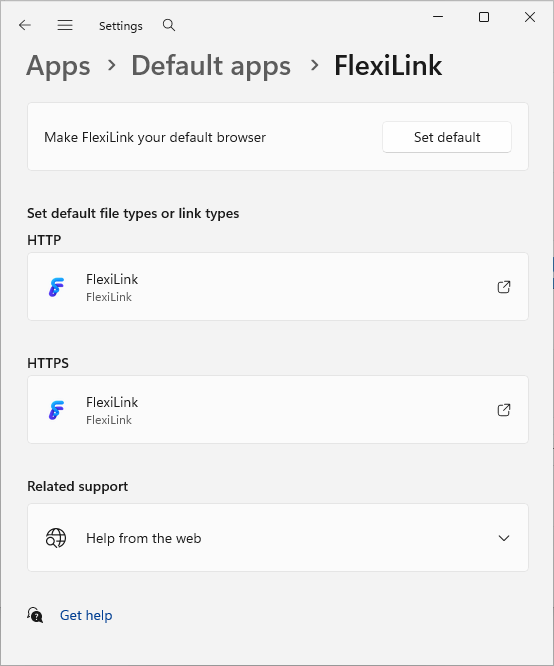
That’s it. Click any link in email or chat and you’ll see the FlexiLink picker. Tip: switch on Check on Startup on the same page, and FlexiLink will tell you if another app ever takes the default back.
3. Add your first rule
The quickest way is right from the picker: click a link, tick Always open site in the selected browser or profile, and pick the browser. Done – that site now always opens there.
For more control, use the Rules page:
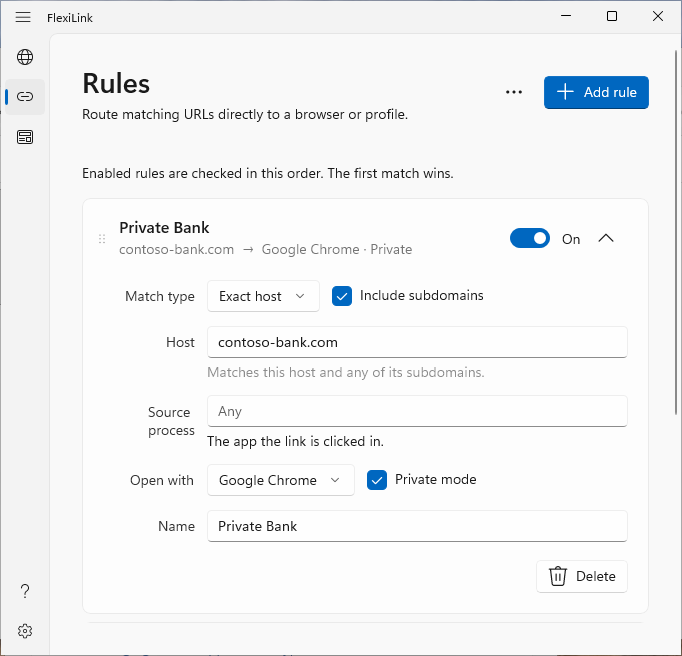
- In Settings, open Rules and click Add rule.
- Choose a Match type and type the site or pattern.
- In Open with, choose a browser – or one of its profiles.
- Optional: tick Private mode, and give the rule a Name.
4. Which match type to choose
Start with the simplest type that does the job. Most rules are Exact host.
Exact host
Matches one website by its name. Capital letters don’t matter.
| Rule | Matches | Doesn’t match |
|---|---|---|
github.com | https://github.com/… | https://gist.github.com/… |
Exact host with “Include subdomains”
Matches the site and everything in front of its name – but not look-alike domains.
| Rule | Matches | Doesn’t match |
|---|---|---|
example.com + subdomains | example.com, www.example.com, a.b.example.com | notexample.com |
URL pattern
Matches the whole address with wildcards: * is any run of characters, ? is exactly one. Use it for a part of a site.
| Rule | Matches | Doesn’t match |
|---|---|---|
https://*.example.com/docs/* | https://help.example.com/docs/setup | https://help.example.com/blog/news, http://… |
*://example.com/* | https://example.com/, http://example.com/a | https://www.example.com/ |
URL regex
A regular expression over the whole address, for anything the other types can’t express. If the expression has a mistake, FlexiLink tells you while you type and never uses a broken rule.
FlexiLink uses the syntax of the Rust regex library. To build and debug an expression, try it on regex101.com with the Rust flavor – paste a few real links as test strings.
| Rule | Matches |
|---|---|
^https?://localhost(:\d+)? | Any local development server, on any port |
^https://[^/]+\.example\.com/admin/ | The admin area of any example.com subdomain |
5. Rule order: the first match wins
FlexiLink checks your enabled rules from top to bottom and uses the first one that matches. Put specific rules above general ones. For example, if docs.example.com should open in Edge but the rest of example.com in Chrome, the docs rule goes first. Drag a rule by its handle to move it.
A switched-off rule keeps its place but is skipped. If no rule matches, you get the picker as usual.
6. Test your rules
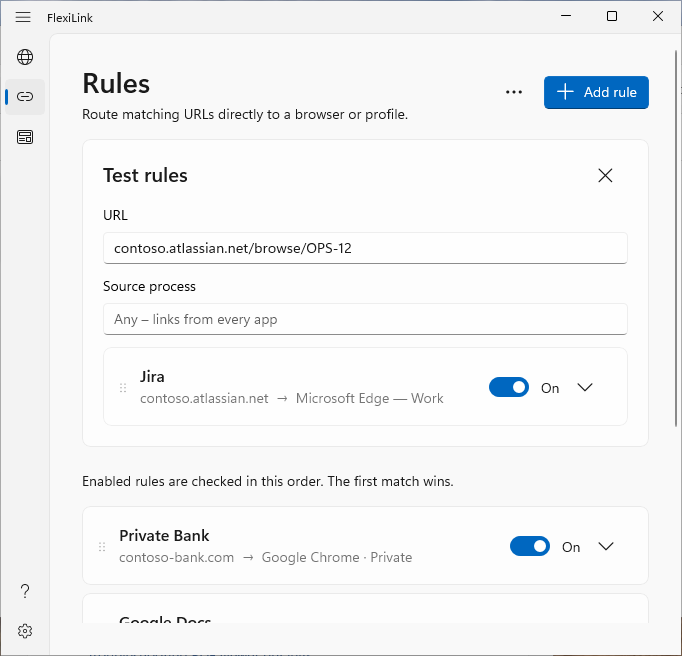
On the Rules page, click ⋯ next to Add rule and choose Test rules…. Paste or type any link – even without https:// – and FlexiLink lists every rule that matches, in order. The first one is the one that will be used.
7. Recipes for common setups
Work tools in the work profile
Your company uses Jira, Confluence and Microsoft 365, and you’re signed in to them in a Chrome profile called Work.
| Match type | Pattern | Open with |
|---|---|---|
| Exact host + subdomains | yourcompany.atlassian.net | Google Chrome – Work |
| Exact host + subdomains | sharepoint.com | Google Chrome – Work |
| Exact host + subdomains | yourcompany.com | Google Chrome – Work |
Everything else still shows the picker – or add a last catch-all rule if you always want your personal profile otherwise (see below).
One profile per client
A freelancer with a Chrome profile per client adds one rule per client domain: client-a.com → Chrome – Client A, client-b.io → Chrome – Client B. Shared tools with client-specific addresses, like client-a.slack.com, are covered by “Include subdomains” on the client’s rule, or by their own exact-host rule.
Google Docs in the personal account
| Match type | Pattern | Open with |
|---|---|---|
| URL pattern | https://docs.google.com/* | Google Chrome – Personal |
Banking and shopping in a private window
| Match type | Pattern | Open with | Private mode |
|---|---|---|---|
| Exact host + subdomains | yourbank.com | Mozilla Firefox | On |
Web development
| Match type | Pattern | Open with |
|---|---|---|
| URL regex | ^https?://(localhost|127\.0\.0\.1)(:\d+)? | Firefox Dev Profile (a custom browser with its own profile) |
| Exact host + subdomains | staging.yourapp.com | Microsoft Edge |
Everything from one app
Want every link from Thunderbird in your work profile, whatever the site? Choose the app in Source process and use the pattern *:
| Match type | Pattern | Source process | Open with |
|---|---|---|---|
| URL wildcard | * | thunderbird.exe | Google Chrome – Work |
The app’s name is its program file; thunderbird works too. You don’t have to look it up: click a link in that app, choose Create Rule in the picker, and click Use … under Source process in the rule editor – for a link clicked in Windows Terminal, Use WindowsTerminal.exe.

Links from Outlook and Teams
If your company uses Microsoft Safe Links, every link in email points to …safelinks.protection.outlook.com, and a rule for your own site never matches. Turn on Unwrap links on the Settings page (the gear at the bottom left): FlexiLink then matches rules against the real address inside, while still opening the original link so Safe Links can check it. See link unwrapping.
A catch-all at the bottom
Want the picker only for sites you haven’t decided about, and your personal profile for everything else? You don’t need a catch-all at all – the picker is the catch-all. But if you’d rather never see the picker, add a last rule of type URL pattern with the pattern * pointing to your everyday browser. Because it’s last, every specific rule above it still wins.
8. One-off exceptions
Need to open a link somewhere else just this once? Hold Shift while you click the link. FlexiLink skips your rules and shows the picker. In the picker, Ctrl+click opens a private window, and Shift+click keeps the picker open so you can open the same link in a second browser too.
mailto: or other app-specific links (like a Zoom or Teams meeting link that opens its app), links opened inside apps with their own built-in browser, apps that open a particular browser directly, or links you click inside a browser. Those keep working as before.