 FlexiLink
Everything FlexiLink does
Here is every feature, what it does, and why you might care. Tags mark what matters most: Essential for the core, Time-saver for conveniences, Power user for advanced options.
The picker Essential
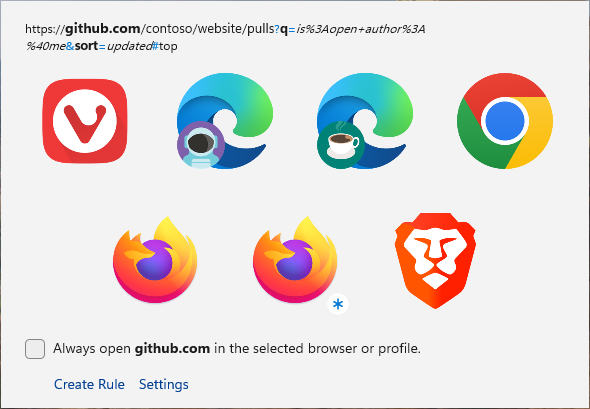
When you click a link and no rule matches, FlexiLink shows a small window with the link on top and a big icon for every browser and profile below. Click one – or press Alt and its number – and the link opens there. The window closes by itself.
- A readable link. The site name is bold and the parts of the address are colored, so you can see where a link really goes before opening it. Long addresses wrap; press F2 to switch to a single scrolling line.
- Remember this choice. Tick Always open github.com in the selected browser or profile and your pick becomes a rule for that site. Next time the link just opens.
- Create Rule. One click opens the rule editor already filled in with this link, when you want something more specific than “this site”.
- Copy the link. Ctrl+C copies the full address without opening anything.
- Always on top, never in the way. The picker appears over your other windows and Esc closes it.
Why it matters: you stay in control. Even without a single rule, choosing the browser takes one click instead of copying the link, opening the right browser, and pasting.
Rules Essential
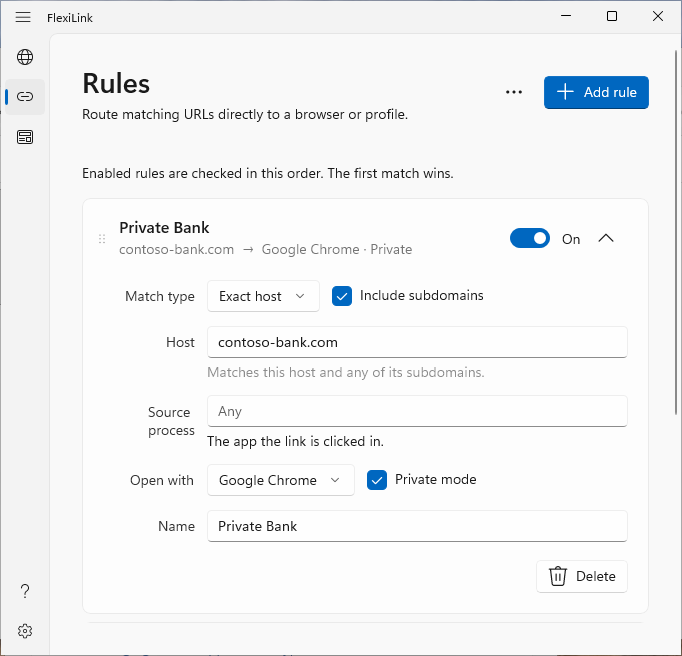
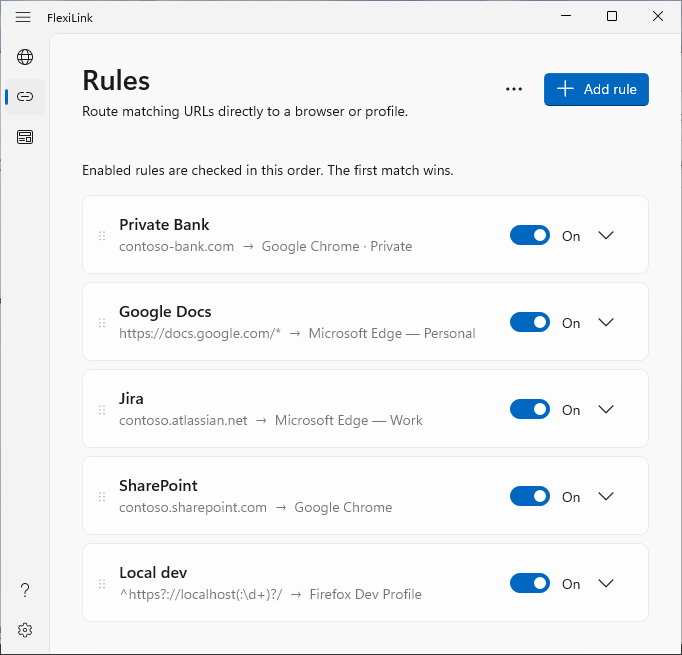
Rules open links automatically, with no picker at all. Each rule has a match and a target: links like this open in that browser or profile.
| Match type | Example | Use it for |
|---|---|---|
| Exact host | github.com | One website |
| Exact host + Include subdomains | contoso-bank.com | A site and everything under it, like online.contoso-bank.com |
| URL wildcard | https://docs.google.com/* | Part of a site; * means “anything” |
| URL regex | ^https?://localhost(:\d+)?/ | Anything else – full regular expressions in Rust regex syntax; try them on regex101 |
- First match wins. Rules are checked from top to bottom, so order is easy to reason about. Drag a rule by its handle to move it.
- Turn rules on and off with a switch, without deleting them.
- Private mode per rule – that site always opens in a private window.
- Names. Give a rule a name, or let its pattern be its label.
- Mistakes are caught. An invalid host or regex is flagged right away and never breaks link opening.
- By app, too. Limit a rule to links clicked in one app – Thunderbird, Teams, Slack. See below.
- Nothing gets lost. If a rule’s browser or profile disappears, the rule is kept and simply skipped; you can reassign all such rules to another browser in one step: on the Rules page, click ⋯ next to Add rule and choose Assign … unassigned rules to.
Why it matters: rules are what make FlexiLink invisible. Most people need three to five rules to never think about browsers again. See ready-made examples in the rules guide.
Links from one app
A rule can also look at where you clicked the link. Fill in Source process – thunderbird.exe, or just thunderbird – and the rule applies only to links from that app. With the pattern * it takes every link from that app, whatever the site.
- One click to set up. Click a link in, say, Windows Terminal and choose Create Rule in the picker: the rule editor already knows where the link came from. Click Use WindowsTerminal.exe under Source process.
- Mix with sites. SharePoint links from Teams in your work profile, from everywhere else in your personal one: put the rule with the app above the one without – the first match wins.
- Test it. The Test rules panel (⋯ › Test rules… on the Rules page) has a Source process box too.
- When the app can’t be told – some apps hand links to Windows in a way that hides where they came from – rules limited to an app are skipped, and the others still apply.

| Source process | Pattern | Opens in |
|---|---|---|
thunderbird.exe | * | Microsoft Edge – Work |
ms-teams.exe | contoso.sharepoint.com + subdomains | Microsoft Edge – Work |
| Any | contoso.sharepoint.com + subdomains | Microsoft Edge – Personal |
slack.exe | * | Firefox |
Test rules
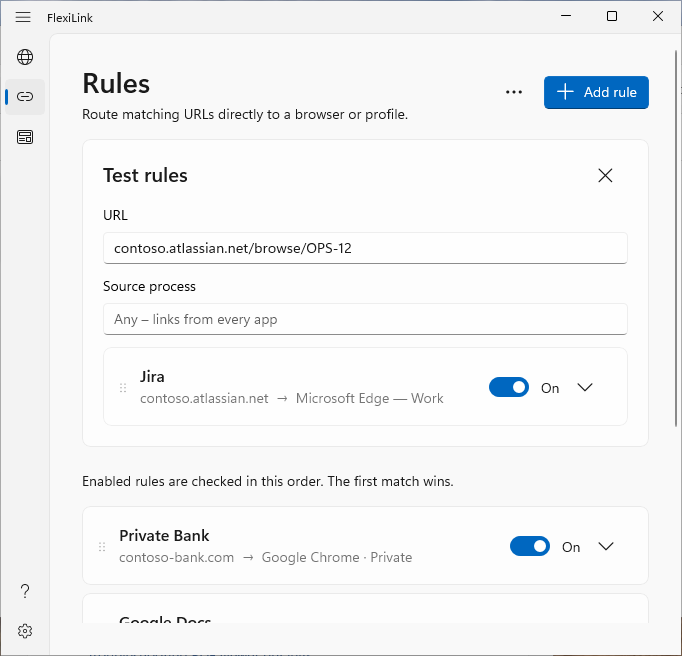
Not sure why a link opened where it did? On the Rules page, click ⋯ next to Add rule and choose Test rules…, paste the link, and FlexiLink lists the rules that match it in order – the winner first. If you typed example.com/path without https://, it assumes https for you.
Link unwrapping Time-saver
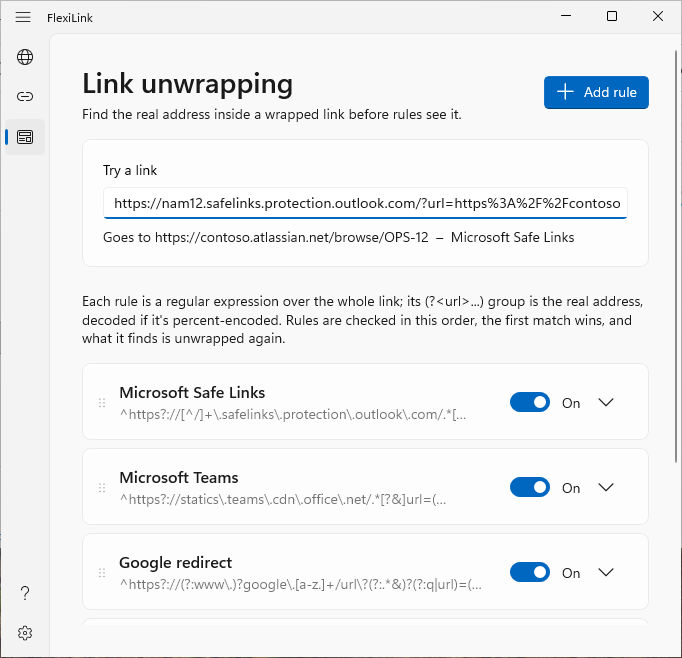
Some email security filters and apps wrap the links they show you, so the real address hides inside theirs: Microsoft’s Safe Links in Outlook and Teams, Facebook’s link shim, Google’s and Slack’s redirects.
nam12.safelinks.protection.outlook.com/
    ?url=https%3A%2F%2Fcontoso.atlassian.net%2F…
→ contoso.atlassian.net/…
Turn on Unwrap links on the Settings page (the gear at the bottom left), and FlexiLink finds the real address before it matches your rules – so a rule for contoso.atlassian.net works for such wrapped links too.
- Ready-made rules for Microsoft Safe Links (Outlook and Teams), Google redirects, Slack, Facebook and WordPress.com emails.
- Your own rules. A regular expression whose
(?<url>…)group is the real address; a percent-encoded one is decoded. Try any link right on the Unwrapping page. - Safe by default. The original link still opens, so Safe Links can check the site – or choose Open the unwrapped link. The picker shows the address that opens; hover it to see the other one.
- Nothing is fetched. Unwrapping happens on your PC; links are never sent anywhere to see where they lead.
Why it matters: in many companies every link in email is wrapped, and chat and social apps wrap theirs too. Without unwrapping, rules would see only the wrapper’s address – never the site you’re actually going to.
Browsers and profiles Essential
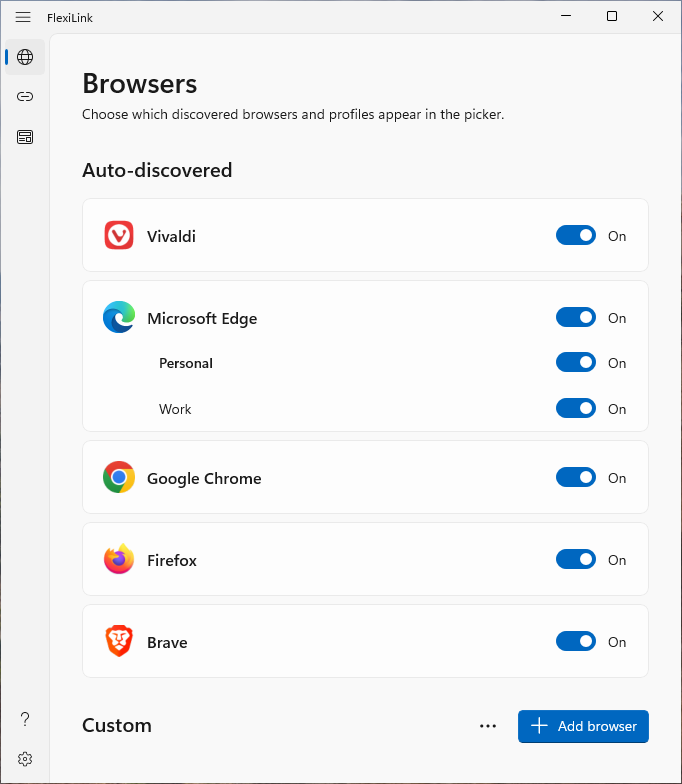
FlexiLink finds the browsers installed on your PC by itself – the same way Windows does – and lists every profile of the browsers that have them. You decide which ones appear in the picker.
- Profile support for Google Chrome, Microsoft Edge, Brave, Vivaldi and Mozilla Firefox. Each profile gets its own entry, with its own picture where the browser provides one.
- Any other browser registered in Windows – Opera, Chromium builds and others – appears too, as a single entry.
- Hide what you don’t use. Switch off a browser or a single profile and it disappears from the picker and menus.
- Always up to date. Install a new browser or create a new profile and it shows up the next time you open Settings.
Why it matters: the profile is what decides which account you are signed in with. Picking “Chrome” is not enough when you have three Chromes.
Private windows Time-saver
Open any link in a private window of the browser you choose – InPrivate in Edge, Incognito in Chrome, Brave and Vivaldi, Private Browsing in Firefox, private mode in Opera.
- In the picker or Quick Access: hold Ctrl while you click.
- In a rule: tick Private mode, and that site always opens privately.
- With a profile: the private window uses that profile’s settings and extensions.
Why it matters: some sites – banking, gifts you’re shopping for, a colleague’s shared link – shouldn’t end up in your history or cookies. Now they don’t, without remembering to right-click.
Custom browsers Power user
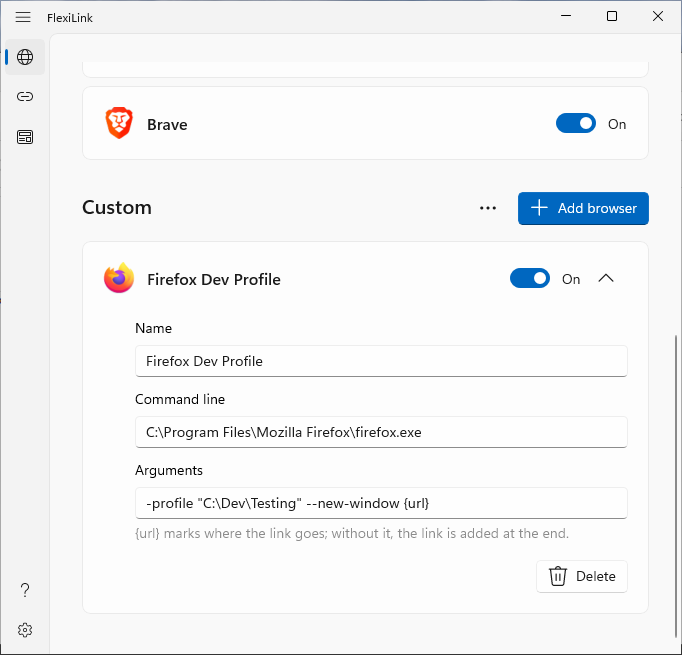
Add anything that can open a web address: a portable browser, a browser started with special options, a Firefox profile in its own folder, a separate Chrome with a proxy, or even a non-browser app.
- Drag and drop a program (
.exe) or a shortcut (.lnk) onto the Browsers page. FlexiLink reads the shortcut’s command line for you. - Clone from an existing browser or profile to start from its command line and tweak the arguments: on the Browsers page, click ⋯ next to Add browser and choose Clone from. The copy is listed right after the original.
- Put the link where you want it with
{url}in the arguments; without it, the link is added at the end. - Private on purpose. A custom browser starts exactly as its command says, so Ctrl+click doesn’t change it and rules don’t offer Private mode for it – add the browser’s own switch, like
--incognito, to make a private one. - Recognizable at a glance. A custom entry shows its program’s icon with a small badge, so you can tell it from the auto-discovered one. You can point it to any other
.ico, program or DLL icon in the settings file. - Safe to delete. When you remove a custom browser that rules use, FlexiLink asks whether to delete those rules too or keep them for reassigning.
Why it matters: real setups are messy. If you can start it from a command line, FlexiLink can send links to it.
Tray icon and Quick Access Time-saver
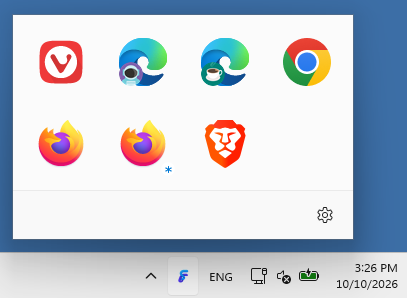
FlexiLink lives in the notification area next to the clock, and starts with Windows.
- Left-click opens Quick Access: a panel right above the icon with every browser and profile. Click one to open a new window in it. Ctrl opens a private window, Shift keeps the panel open, Esc or clicking elsewhere closes it.
- Right-click shows a compact menu with the same browsers, plus Settings and Exit.
- Notifications come from the tray icon – for example when a new version is available.
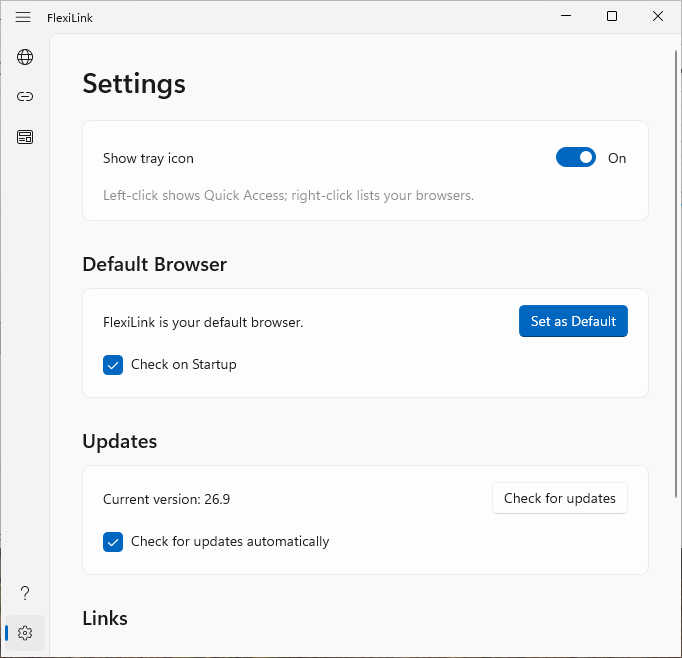
- Don’t want it? Switch the tray icon off on the Settings page (the gear at the bottom left). Link routing keeps working either way.
Why it matters: it replaces a desktop full of “Chrome – Work”, “Chrome – Personal”, “Edge – Client” shortcuts with one icon.
Default browser integration Essential
For FlexiLink to see your links, Windows has to send them to it – that is, FlexiLink has to be your default browser. Your real browsers keep working exactly as before.
- Make default opens the right page of Windows Settings, pre-filtered to FlexiLink. You confirm with one click – Windows requires that, and FlexiLink respects it.
- Status at a glance. Settings shows whether FlexiLink is currently the default.
- Check on Startup. If another app takes over the default browser, FlexiLink tells you with a notification when you sign in. Click it to fix it.
- Which links. FlexiLink routes standard HTTP and HTTPS links that Windows sends to your default browser. It doesn’t see
mailto:or other app-specific links (like a Zoom or Teams meeting link that opens its app), links opened inside apps with their own built-in browser, apps that open a particular browser directly, or links you click inside a browser. - Clean uninstall. Removing FlexiLink removes its registration and its start-with-Windows entry, and opens Windows Settings on the browser you used before, so you can switch back with one click.
Why it matters: browser updates love to say “make me your default”. FlexiLink notices, so your rules don’t silently stop working.
Keyboard shortcuts Time-saver
Everything works with the mouse, but these make FlexiLink faster:
| Where | Keys | What happens |
|---|---|---|
| Picker, Quick Access | Alt+1 … Alt+9 | Open the link in the first … ninth browser |
| Picker, Quick Access | Ctrl + click | Open in a private window |
| Picker, Quick Access | Shift + click | Open, but keep the window open to pick another browser too |
| Picker, Quick Access | Esc | Close without opening anything |
| Picker | Ctrl + C | Copy the link |
| Picker | F2 | Wrap a long link, or show it on one line |
| Picker | Alt+A, Alt+C, Alt+S | “Always open”, Create Rule, Settings |
| Any app | Hold Shift while clicking a link | Show the picker even if a rule matches – handy for a one-off exception |
Updates Time-saver
FlexiLink checks for a new version once a day and shows a Windows notification the first time it finds one. Click it to download. You can also check any time on the Settings page (the gear at the bottom left), or turn automatic checks off – and while a newer version is out, the About page shows a link to it next to the version number.
Updating is simply running the new installer: your settings and rules are kept.
Why it matters: you get fixes and new browser support without having to remember to look – and without an updater nagging you every hour.
Privacy and footprint
A small tool that does one job and leaves the rest of your PC alone.
Your links stay yours
FlexiLink never sends the links you open anywhere. Rules and settings live in a plain text file on your PC. No account, no analytics, no ads.
Online only for updates and your license
FlexiLink goes online only for a daily update check, which you can turn off, and to activate and verify your license. It never sends the links you open. Details in the privacy policy.
Native and lightweight
Built with Rust and WinUI 3. No bundled web engine, instant start, a few megabytes on disk.
No administrator rights
Installs only for your Windows user account, under your AppData folder. No administrator rights needed – where your organisation permits per-user apps and changing the default browser.
For power users and IT Power user
The settings file
Everything you set up is stored in %LOCALAPPDATA%\FlexiLink\config.yaml, a plain, human-readable file. Back it up, copy it to another PC, or edit it by hand while Settings is closed. If the file has a mistake, FlexiLink starts with default settings instead of failing, keeps a copy of your file as config-broken.yaml the next time it saves, and --log tells you what was wrong.
Here is a file that uses every setting:
show_tray_icon: true
check_default_browser_on_startup: true
check_for_updates: true
license_code: "XXXXX-XXXXX-XXXXX-XXXXX"

browsers:
  # Found by FlexiLink and refreshed on every save:
  # only "enabled" and the order are yours to change.
  - source: autodiscovered
    id: Google Chrome
    name: Google Chrome
    profiles:
      - id: Default
        name: Personal
      - id: Profile 1
        name: Work
        enabled: false

  - source: autodiscovered
    id: Firefox-308046B0AF4A39CB
    name: Firefox

  # Your own browsers.
  - id: firefox-dev
    name: Firefox Dev Profile
    command:
      exe: "C:\\Program Files\\Mozilla Firefox\\firefox.exe"
      args: ["-profile", "C:\\Dev\\Testing", "--new-window", "{url}"]
    # Listed right after Firefox, not first.
    after: Firefox-308046B0AF4A39CB

  - id: portable
    name: Portable browser
    enabled: false
    command: '"D:\Apps\Browser\browser.exe" --incognito'
    icon: "D:\\Apps\\Browser\\browser.exe,1"

rules:
  - id: jira
    name: Jira
    match:
      kind: domain
      value: contoso.atlassian.net
    target:
      browser: Google Chrome
      profile: Profile 1

  - id: bank
    match:
      kind: host
      value: contoso-bank.com
    target:
      browser: Google Chrome
    private: true

  - id: local-dev
    name: Local dev
    match:
      kind: regex
      value: '^https?://localhost(:\d+)?/'
    target:
      browser: firefox-dev

  # Every link from Thunderbird, whatever the site.
  - id: mail
    match:
      kind: wildcard
      value: "*"
      process: thunderbird.exe
    target:
      browser: Google Chrome
      profile: Profile 1

unwrap_links: true
open_unwrapped_links: false
unwrap_rules:
  - name: Microsoft Safe Links
    pattern: '^https?://[^/]+\.safelinks\.protection\.outlook\.com/.*[?&]url=(?<url>[^&]+)'
In double quotes, write every backslash twice ("C:\\Icons\\work.ico") – that’s how FlexiLink itself saves paths. In single quotes, write it once ('C:\Icons\work.ico').
| Setting | What it does |
|---|---|
show_tray_icon | The tray icon with Quick Access, started with Windows. Default true. |
check_default_browser_on_startup | Tell you at sign-in when FlexiLink is no longer the default browser. Default false. |
check_for_updates | The daily update check. Default true. |
license_code | Your license key, as entered on the About page (the ? at the bottom left of Settings). |
browsers, source: autodiscovered | Browsers and profiles FlexiLink found. Refreshed every time the file is saved – set enabled: false on a browser or one of its profiles to hide it. Their order in the file is their order in the picker, Quick Access and the tray menu; move an entry to move the browser. The other fields are just for reading. |
browsers: id, name | A browser of your own. The id is how rules refer to it and must be unique; the name shows in tooltips and menus. |
enabled | false hides a browser or profile, or switches a rule off, without deleting it. Default true. |
command: exe, args | The program and its arguments. {url} in an argument is replaced with the link; without it, the link is added at the end. Or give the whole command line as one string: command: '"D:\Apps\app.exe" --flag'. |
icon | The picture shown for the browser: an .ico file, or a program or DLL. app.exe,1 takes the second icon inside it (,0 is the first); a negative number is a resource id, as in Windows shortcuts. Without it – or if it can’t be loaded – the program’s own icon is used, with a small badge. |
after | Optional, for a browser of your own: the id of another browser – auto-discovered or your own – to list it right after (after all its profiles) in the picker, Quick Access and the tray menu. Clone from sets it to the browser you cloned. Without it, or if that browser is off or gone, your own browsers come first. |
rules: id, name | A rule. The id must be unique; the optional name is its title in Settings. |
match: process | Only links clicked in this app, like thunderbird.exe – case and the .exe don’t matter. Leave it out for any app. With kind: wildcard and value: "*", every link from the app. |
match: kind, value | host (exact host), domain (host and its subdomains), wildcard or regex (the whole URL) – see the rules guide. |
target: browser, profile | Where matching links open: your own browser’s id, or a found browser’s id plus, optionally, one of its profile ids. |
unwrap_links | Find the real address inside wrapped links before rules are matched. Default false. |
open_unwrapped_links | Open the unwrapped address instead of the original link. Default false, so Safe Links still checks the site. |
unwrap_rules: name, enabled, pattern | Tried in order, first match wins, again on the result. pattern is a regex over the whole link with a (?<url>…) group. Without the key, the built-in rules are used. |
private | true opens matching links in a private window. For your own browsers FlexiLink doesn’t know the private-mode switch – put it in the arguments instead (--incognito, -private-window…). |
Command line
| Command | What it does |
|---|---|
flexilink.exe | Opens Settings (and the tray icon, if enabled) |
flexilink.exe https://example.com | Routes that link as if you had clicked it |
flexilink.exe register | Registers FlexiLink as a browser in Windows without changing your default |
flexilink.exe register ui | Registers and opens Windows “Default apps” to confirm FlexiLink as default, then starts the tray icon |
flexilink.exe unregister | Removes FlexiLink’s browser registration and its start-with-Windows entry; if FlexiLink is the default, first opens Windows “Default apps” for the browser used before |
flexilink.exe check | Exit code 1 if FlexiLink is the default browser, 0 if not |
flexilink.exe quit | Closes the running tray instance |
--log, --log=path | Add to any command to write a diagnostic log to %LOCALAPPDATA%\FlexiLink\flexilink.log, or to the file you give: --log="C:\Temp\flexilink.log" |
Silent install
FlexiLink-Setup-26.10.0.exe /quiet installs without any windows – useful for scripted setups. The installer is per-user and needs no elevation.
See it on your own links
Free for 30 days, every feature included. If you like it, a license is $19 per PC (excl. VAT) – once, not every month.
Windows 10 (1809+) and Windows 11, 64-bit · Version 26.10